 Phixit
Make a LinkedIn banner (1584 × 396)
The background photo at the top of a LinkedIn profile is a long, thin strip: 1584 × 396 pixels, four times wider than it is tall. Few photos have that shape, so crop yours to 4:1 first and choose exactly which strip shows.
Free, no sign-up. Your photo stays on your device. Try it on a sample photo
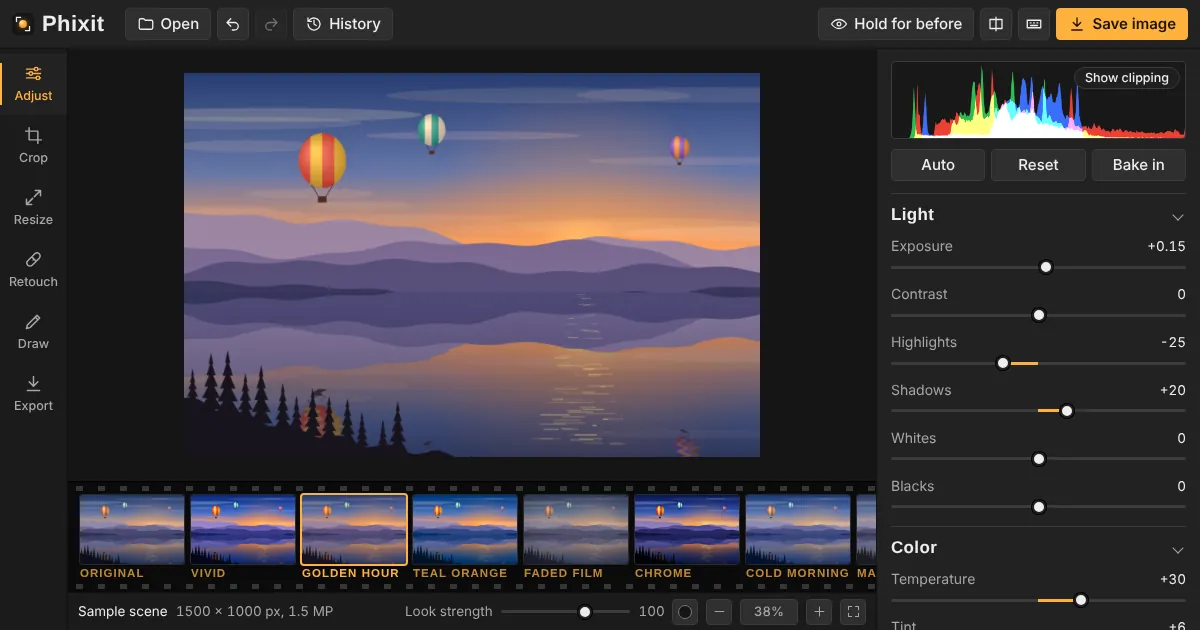
How to make a LinkedIn banner
- Choose or drop a photo. It opens with a 4:1 crop frame on it.
- Drag inside the frame to pick the strip you want, and drag a corner to take in more or less of the photo. Select Apply crop.
- Open Resize, type 1584 as the width and leave Keep proportions on, so the height becomes 396. Select Resize image, then save as JPEG from Export.
Good to know
- On a computer, your profile photo covers part of the bottom of the banner, on the left in most languages. Keep faces and text toward the center.
- Phones show the banner much smaller, so text that reads well on a computer can be too small there. Keep any words short and large.
- A crop narrower than 1584 pixels has to be enlarged and will look soft. Start from a wide, sharp photo when you can.
Questions
What size is a LinkedIn banner?
LinkedIn recommends 1584 × 396 pixels for the profile background photo, a 4:1 ratio. Starting from that exact shape means you choose the framing, not LinkedIn.
Can I add text to my banner?
Yes. After resizing, open Draw and choose Text to add your name, role or a short line. Text sits on its own layer, so changes to the photo never recolor it.
Is my photo uploaded?
Not to Phixit. Everything runs in your browser; the only upload is the one you make to LinkedIn yourself.
Related tools
- LinkedIn image sizesEvery LinkedIn photo size in one place, with a free tool for each: 1584 × 396 banner, 400 × 400 profile photo, 1200 × 627 posts and an open to work frame.
- LinkedIn profile pictureCrop a headshot to a square that looks right inside the LinkedIn circle, at 400 × 400 pixels or more.
- LinkedIn post imageCrop photos for LinkedIn posts: 1.91:1 landscape (1200 × 627), square or 4:5 portrait, or fit the whole photo without cutting.
- Add text to a photoWrite on photos with 8 fonts, outline and shadow, plus arrows, boxes and freehand drawing.