 Phixit
Add an open to work frame to a profile photo
A colored ring with #OPENTOWORK along the bottom tells recruiters at a glance that you are looking. LinkedIn adds its own when you share that you are open to work with all members. Make your own here for different words or another color, or to use the same photo on a CV or another site.
Free, no sign-up. Your photo stays on your device. Try it on a sample photo
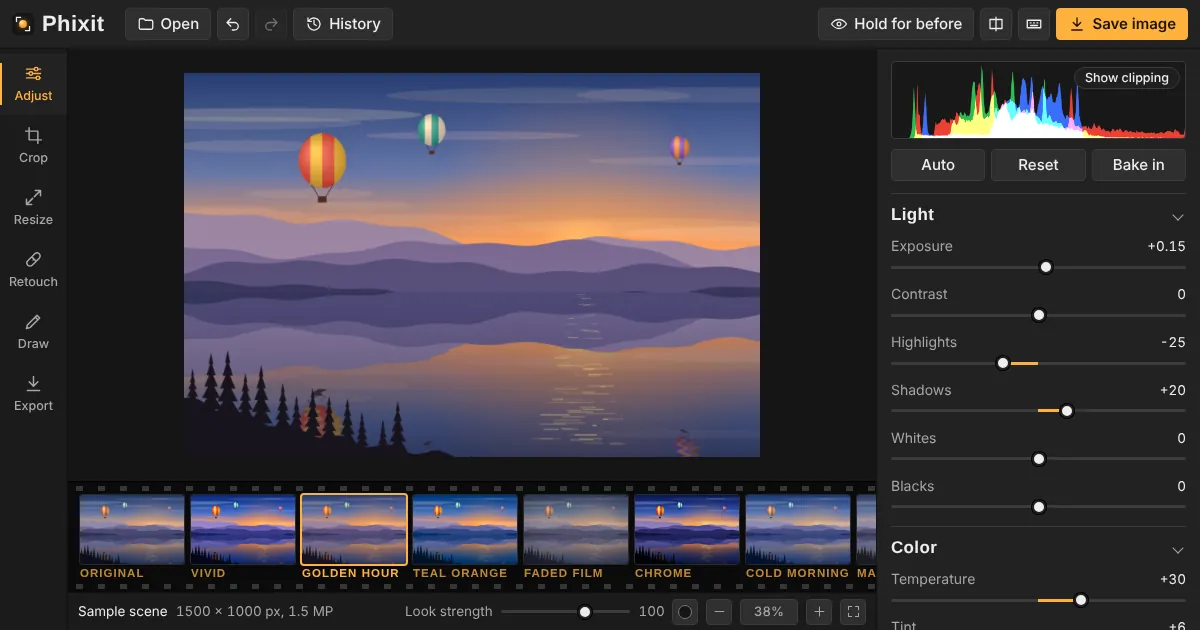
How to add an open to work frame to a photo
- Choose or drop a photo. It opens on Draw with the Profile frame settings ready.
- Type your text, such as #OPENTOWORK or #HIRING, and pick a frame color. Select Add profile frame. If the photo is not square yet, the editor switches to Crop with 1:1 selected: frame your face, select Apply crop, then come back to Draw.
- Save as JPEG from Export and upload it as your profile photo.
Good to know
- The ring sits on the edge of the circle that sites crop profile photos to, so keep your face in the middle with some room around it.
- Short text reads best. One or two words fit along the lower left; longer text is set smaller so it still fits.
- To try another color, undo and add the frame again. Remove all drawing and text takes it off completely.
Questions
Is this the official LinkedIn frame?
No. It is a frame drawn on your own photo, in the same style. If you also turn on the frame in your LinkedIn settings, you will see two rings, so use one or the other.
Can I write something else?
Yes. Type any short text in any language and pick any color. Dark rings get white letters and light rings get dark ones, so the text stays readable.
Does the frame change if I adjust the photo?
No. It sits on the drawing layer above the photo, so brightness, color and filters never change it.
Related tools
- LinkedIn image sizesEvery LinkedIn photo size in one place, with a free tool for each: 1584 × 396 banner, 400 × 400 profile photo, 1200 × 627 posts and an open to work frame.
- LinkedIn profile pictureCrop a headshot to a square that looks right inside the LinkedIn circle, at 400 × 400 pixels or more.
- Crop to a squareTurn any photo into a 1:1 square for Instagram, profile pictures and avatars.
- Add text to a photoWrite on photos with 8 fonts, outline and shadow, plus arrows, boxes and freehand drawing.