 Phixit
Size an image for a LinkedIn post
A landscape image of 1200 × 627 pixels, a 1.91:1 ratio, is the classic size for LinkedIn posts and link previews. Square and 4:5 portrait images take up more of a phone screen. Crop to the shape you want so the framing is yours.
Free, no sign-up. Your photo stays on your device. Try it on a sample photo
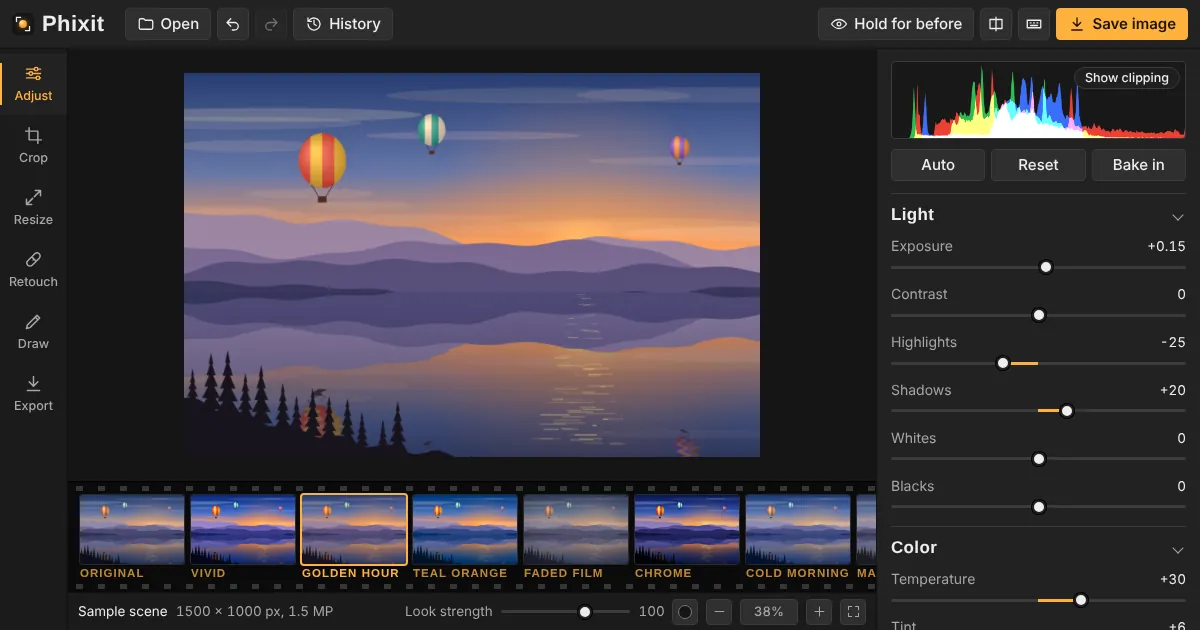
How to size an image for a LinkedIn post
- Choose or drop a photo. It opens with a 1.91:1 landscape crop frame. For a square or portrait post, pick 1:1 or 4:5 instead.
- Move and size the frame, then select Apply crop.
- Open Resize and type the width: 1200 for landscape, 1080 for square or 4:5. Select Resize image, then save as JPEG from Export.
Good to know
- Want the whole photo with nothing cut off? In Resize, under Fit into a shape, choose Landscape 1.91:1 or Portrait 4:5 and select Add padding.
- With Keep proportions on, the height can come out a pixel off, such as 628 instead of 627. That is rounding and makes no visible difference.
- Words in an image are hard to read at feed size on a phone. If you add text with Draw, keep it short and large.
Questions
What is the best image size for a LinkedIn post?
1200 × 627 pixels for landscape, the same shape as link previews. Square at 1080 × 1080 and portrait at 1080 × 1350 (4:5) show larger in the mobile feed.
Should I use JPEG or PNG?
JPEG for photos, because the file is much smaller. PNG for screenshots, charts and slides with sharp text, where JPEG would leave soft smudges around the letters.
Is my image uploaded to Phixit?
No. Phixit runs in your browser and never sends your photo anywhere. You upload it to LinkedIn yourself.
Related tools
- LinkedIn image sizesEvery LinkedIn photo size in one place, with a free tool for each: 1584 × 396 banner, 400 × 400 profile photo, 1200 × 627 posts and an open to work frame.
- LinkedIn bannerCrop any photo to the 4:1 shape of a LinkedIn background photo and resize it to 1584 × 396 pixels.
- LinkedIn profile pictureCrop a headshot to a square that looks right inside the LinkedIn circle, at 400 × 400 pixels or more.
- Fit a photo in a squarePost full photos on Instagram without cropping: Phixit adds a blurred or solid background to make any picture square, 4:5 or 9:16.